
Put your strategy on TradingView
Wildflower Trading School · Lesson 2.4.8.3 · This exercise needs a Trade subscription

This is the third lesson towards your own indicator strategy: a signal and a filter you chose from Studio's indicators, every number yours, checked trade by trade, and drawn on your own chart platform. Today is the second half of line seven: your strategy, drawn on the chart you watch. The check was free. Copy to a platform needs a Trade subscription.
1 of 9
What you'll learn
- Press Copy to a platform and pick TradingView. Copying needs Trade.
- Read No errors and how many setups it draws before you copy.
- Setups aren't trades. Sizes and daily limits stay in Wildflower.
- Paste it into the Pine Editor on your strategy's candle size.
- Copy again after every change you save in Wildflower.
Exercise
- Choose Trade or Automate on Plans. Copying to a platform needs Trade.
- If your strategy has a filter, check it is switched on and each row has Recent candles it may hold within filled in.
- Open your strategy in Strategies, press Copy to a platform and pick TradingView.
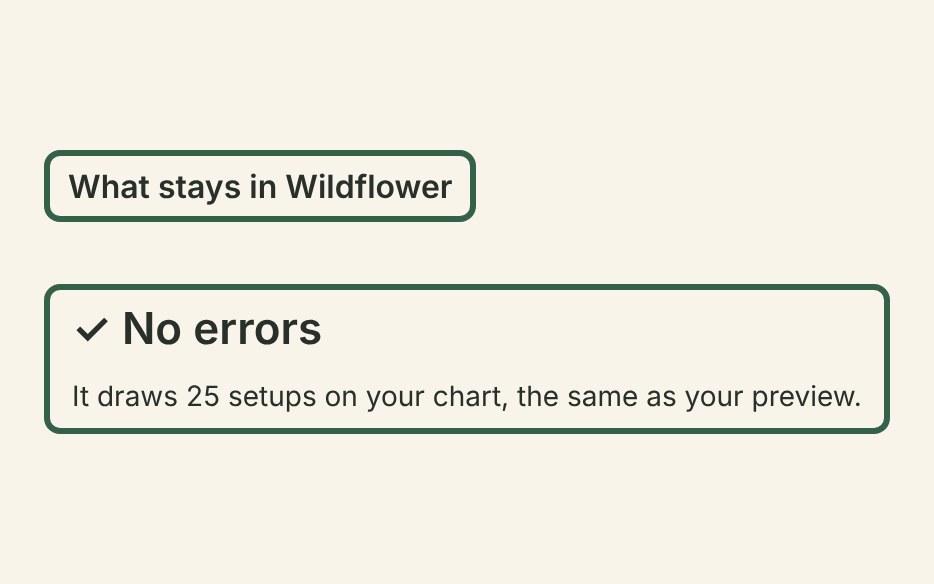
- Read No errors and how many setups it draws, then press Add to chart and Copy code.
- In TradingView, open the Pine Editor on your candle size, paste, Save and Add to chart.
- Write the second half of line 7.
- Help article Copy your strategy to TradingView
- Help article Copying your strategy to a platform: the Trade subscription
Quick check
1. Which of these stays in Wildflower and isn't in the TradingView copy?
2. Which step needs a Trade subscription?
3. Sam saves a change in Wildflower. What keeps his TradingView chart the same rule?
0 of 3 answered.
Finished this lesson?
Tick it off and keep your place
Read the full notes
A rule in Wildflower and a different rule on your chart give you two sets of numbers. Copying the rule puts the same setups on the chart you watch. In Wildflower, open your strategy, press Copy to a platform and pick TradingView. The Ready page checks the script has no errors, says how many setups it draws, and lists what stays in Wildflower: the size of each trade, the daily limits and how the order is sent. Press Add to chart, copy the code, and paste it into TradingView's Pine Editor. Copying needs a Trade subscription.
What you're building. The third lesson towards your own indicator strategy: a signal and a filter you chose from Studio's indicators, every number yours, checked trade by trade, and drawn on your own chart platform. Last lesson checked it trade by trade. Today is the second half of line 7, and the goal is done. Next lesson changes your signal's average.
| My indicator rule |
|---|
| 1. The signal: … (which indicator, and what it must do) |
| 2. The signal's numbers: … candles, …-minute candles, the price it reads … |
| 3. The filter: … (which indicator, must hold or must not, buys, sells or both) |
| 4. The filter's level: … in its own unit |
| 5. Stop … ticks, target … times the stop, $… a trade, … to … New York |
| 6. The wait: my strategy needs … candles before it can trade |
| 7. Checked: … trades gone through, and on my platform: … |
The check was free. Copy to a platform needs Trade.
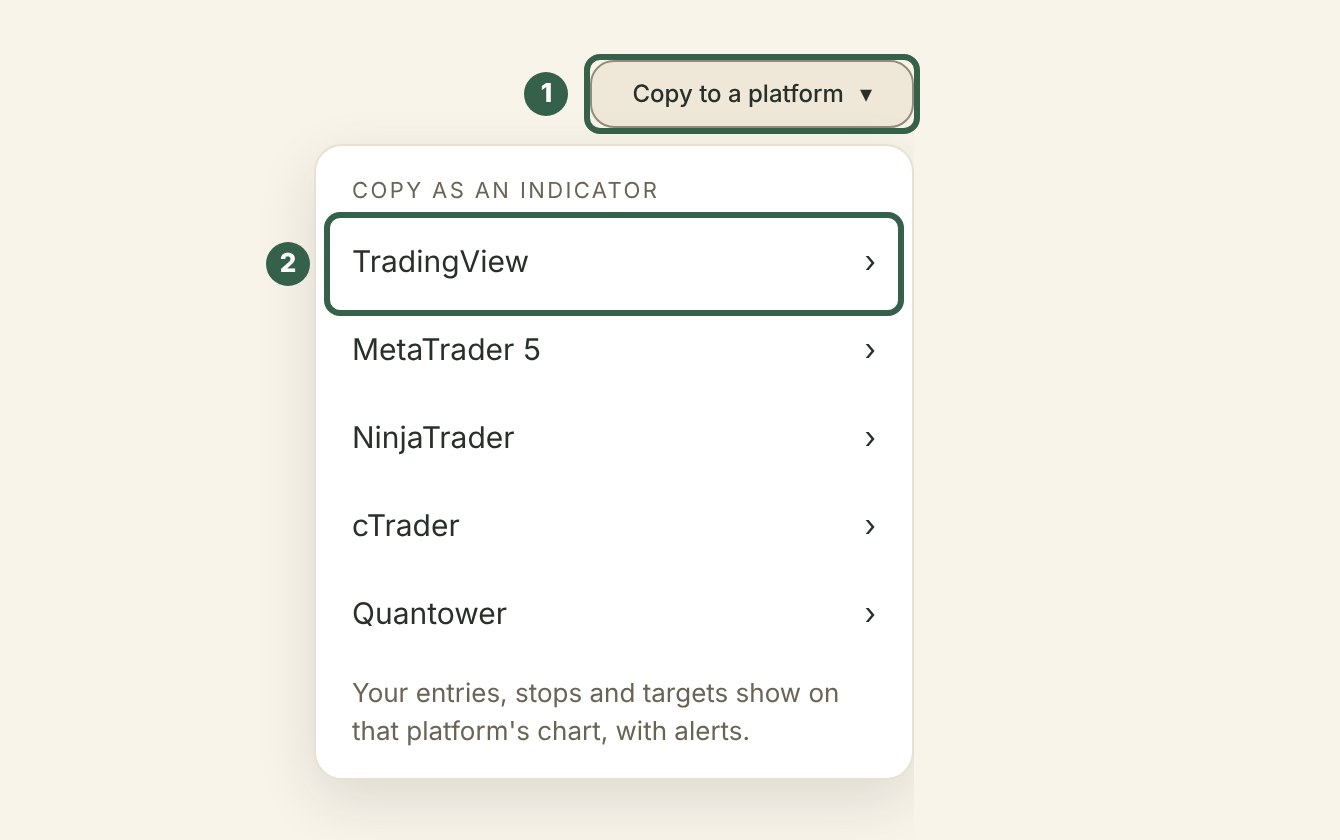
If you have a filter. Before it can be copied, the filter must be switched on, or removed, and each of its rows needs Recent candles it may hold within filled in, like 1 for the last closed candle. If either is missing, the copy says so. Press Change a rule, fix it, Save, and copy again.
- Press Add to chart, then Copy code.
- Open your TradingView chart on your strategy's candle size, and click the Pine Editor icon on the right.
- You may need Create New, then Indicator. Select everything already there and delete it.
- Paste, Save, and click Add to chart.
- For phone alerts, click Alert, choose your indicator, then Create.
After a change, copy again. In the Pine Editor, click Open, choose your saved indicator, select everything, paste over it and Save. Your settings and alerts stay. The other four platforms: Copy your strategy to TradingView or another platform. In TradingView itself: Adding an indicator in TradingView. The same steps for a chart pattern: Check a chart pattern, then copy it to a platform.
Worked example
Made-up numbersWhy 25 setups and 18 trades
Sam is made up. His Backtest of Version 2 took 18 trades. His TradingView copy draws 25 setups on the same practice chart.
- A setup is a candle where the rule says buy, with its entry, stop and target.
- A trade also needs Wildflower's other rules to say yes, like the daily limits.
- Those stay in Wildflower, so the chart can show setups the Backtest didn't trade.
More setups than trades is expected. No errors and the same count as the preview is the check.
Trading is risky. You can lose money. This lesson shows how Wildflower works. It isn't advice.