
Connect your broker to Wildflower
Wildflower Trading School · Lesson 1.6.3.2 · This exercise needs a Trade subscription

This is the second of five lessons on setting Wildflower up the way you'll trade. By the end of this one, your broker is connected, your charts run on its live prices, and every account it found is sitting there switched off, waiting for you to choose what trades.
1 of 9
What you'll learn
- Live charts come from your own broker, once it's connected to Wildflower.
- Read Before connecting for your broker, and do it on your broker's side first.
- Your sign-in goes to your computer, locked so only your computer can read it.
- Every account arrives switched off. Nothing trades until you switch it on.
- Choose which account to start with, such as a paper trading account.
Exercise
- Choose Trade or Automate on Plans if you aren't subscribed yet.
- Check the Wildflower app is running on your computer (Desktop agent).
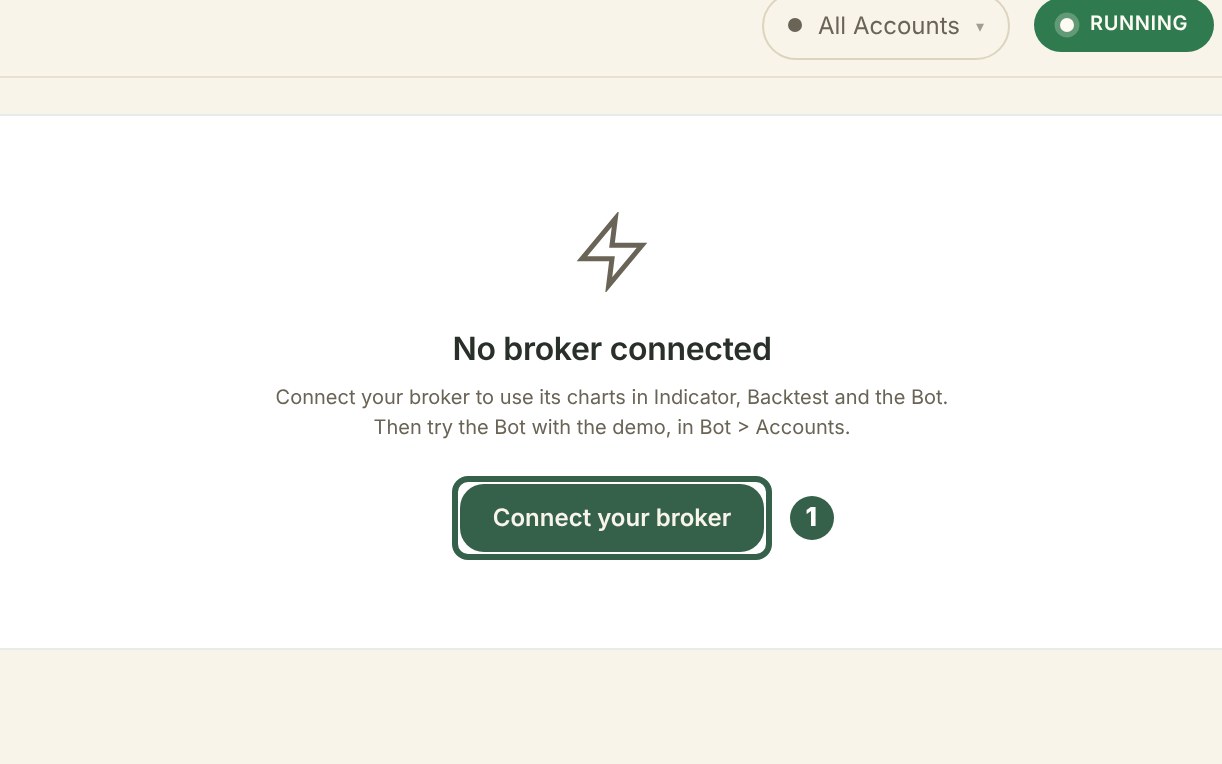
- Open Connections and press Connect your broker.
- Pick your broker and read its Before connecting note. Do what it says first.
- Type your sign-in, pick your system if asked, and press Send to my computer.
- Check each account says Bot off.
- Help article Connect your broker
- Help article Connect a Rithmic account
Quick check
1. You've just connected your broker. What state are your accounts in?
2. Where does your broker sign-in go when you press Send to my computer?
3. Which Rithmic accounts can't connect, according to its Before connecting note?
0 of 3 answered.
Finished this lesson?
Tick it off and keep your place
Read the full notes
In Wildflower you open Connections, press Connect your broker, pick ProjectX or Rithmic, do what its Before connecting note says, then type your sign-in and press Send to my computer. Your computer signs in, and every account it finds appears switched off, so nothing trades until you choose.
What you'll do. This is how you connect your A firm that holds your trading account, passes your orders to the market and reports your trades back.More in the glossary to Wildflower. By the end, your charts run on your broker's live prices, and every account under your login is listed, switched off. It needs the Trade or Automate subscription and the Wildflower app running on your computer. No broker yet? Practise free on practice money, and see What to look for in a broker.
- Live prices. Your charts, backtests and the demo use live prices from your own broker account.
- Connecting can't place a trade. Every account arrives switched off. Nothing trades on it, by hand or by the Bot, until you switch it on.
- One sign-in, every account. Wildflower finds every account under that login.
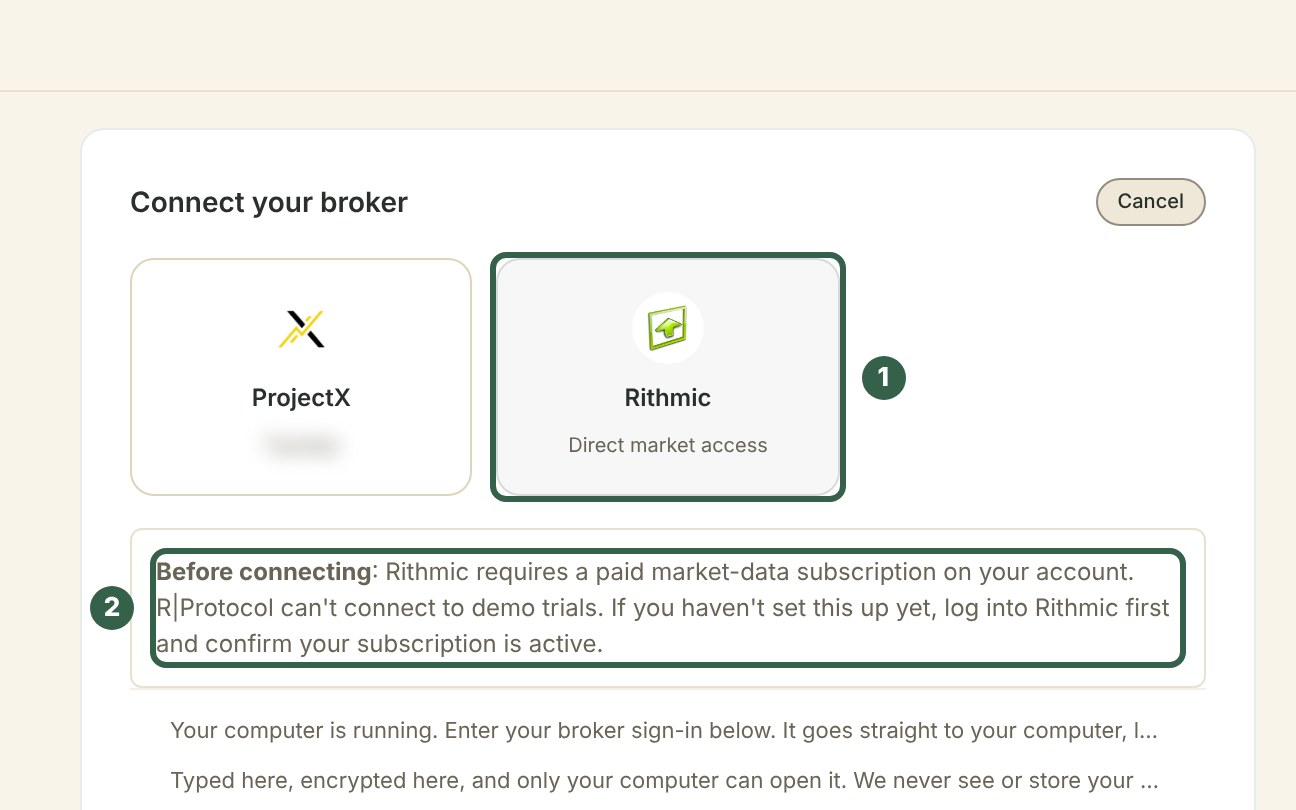
Two ways in. ProjectX, with your ProjectX login. Or Rithmic, which carries orders and prices for many brokers and firms: pick yours from System name, or one of Rithmic's own, such as Rithmic Paper Trading. Rithmic needs a paid market-data subscription on your account, and its demo trials can't connect.
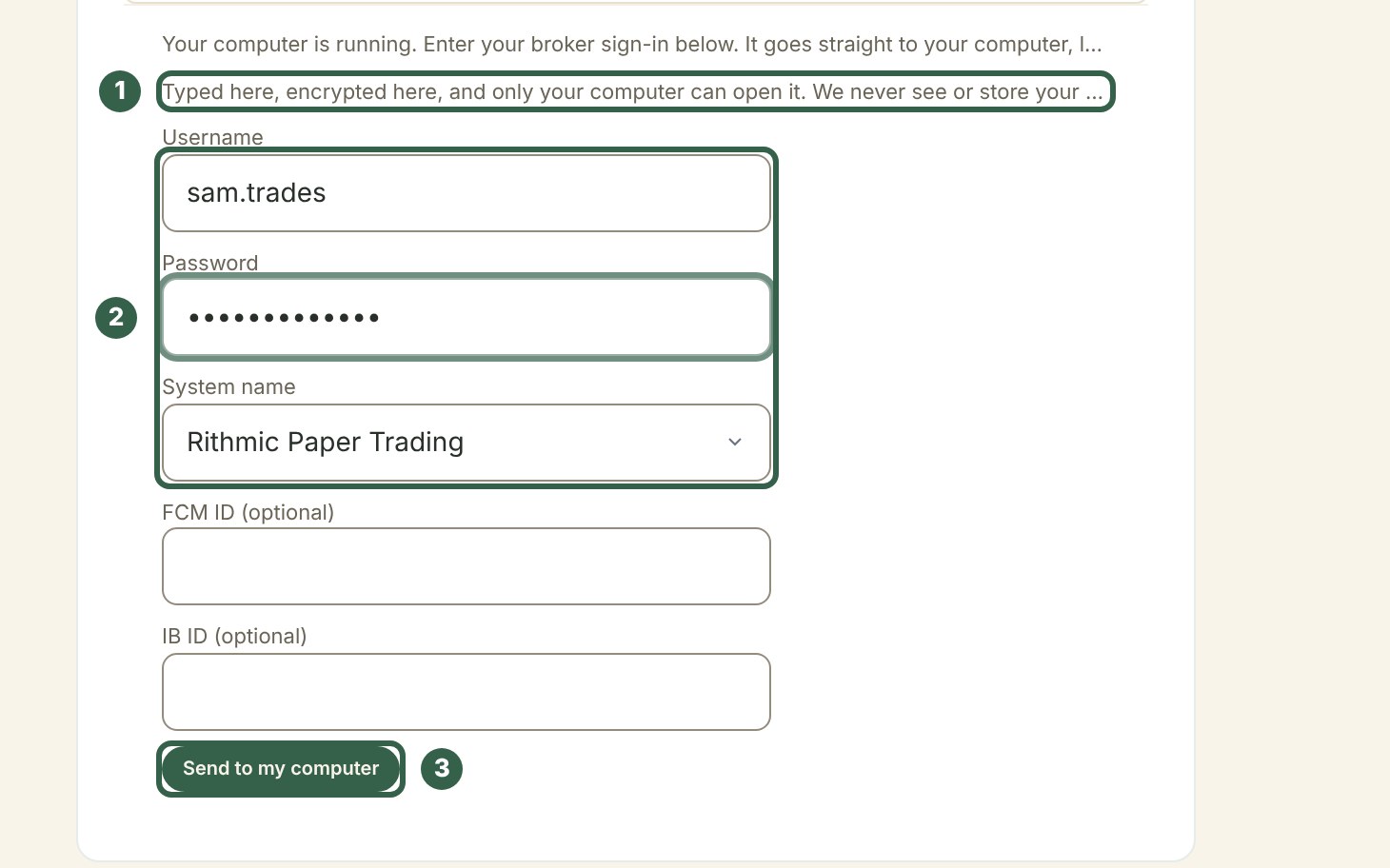
Your sign-in. What you type is locked in your browser so only your computer can open it. Wildflower never sees or stores your broker password. Your computer signs in, which takes a few seconds, then shows Signed in.
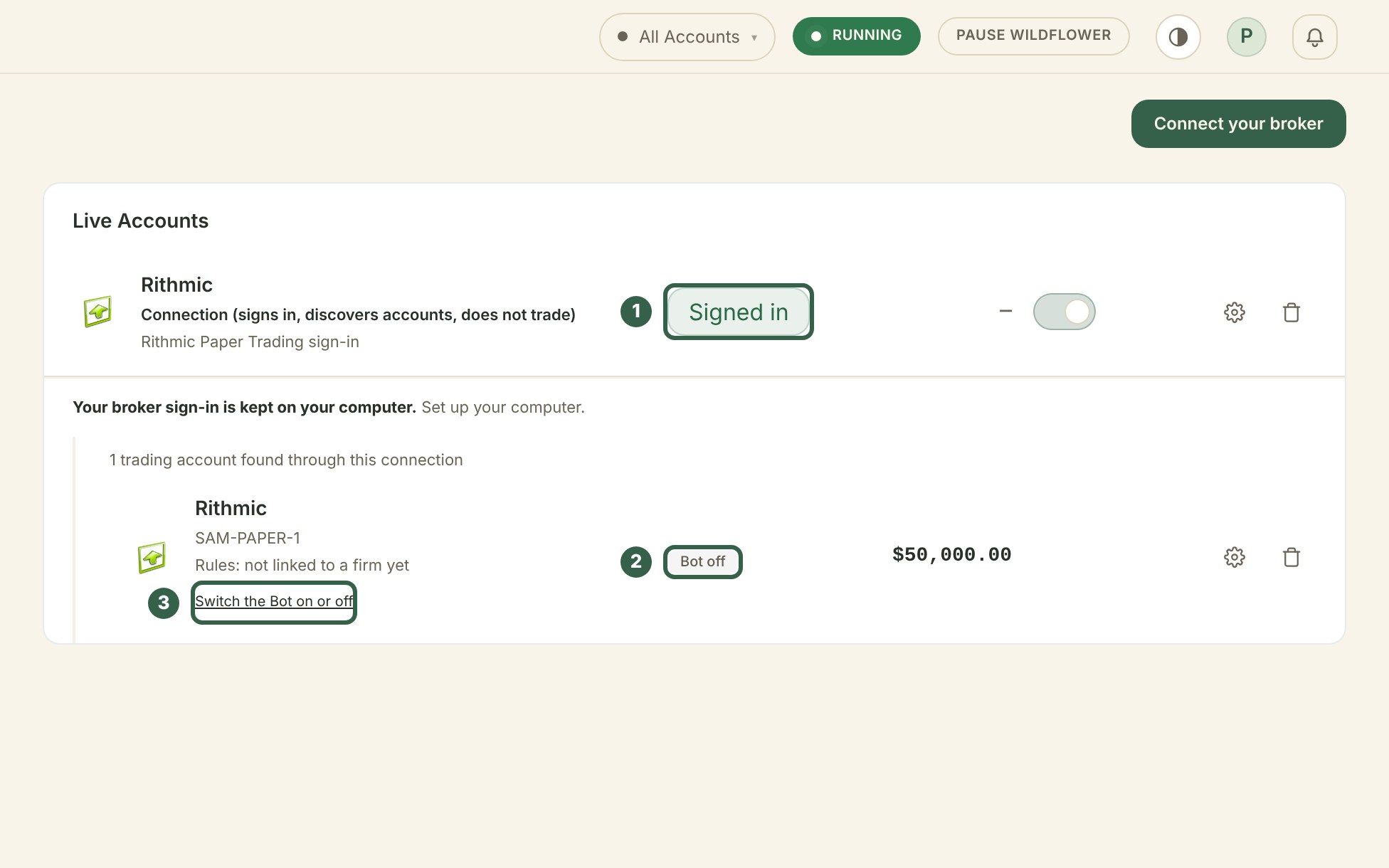
Switching on. Each account ends with Switch the Bot on or off, which opens its page. On a real account, trading by hand needs the Trade subscription, and the Bot needs the Automate subscription. Next: your first trades on the Wildflower demo. The help articles Connect your broker, Connect a ProjectX account and Connect a Rithmic account have the detail for each.
Which account traders start with. We can't tell you which to choose. These are the common choices. A paper trading account at their broker, with live prices and pretend money. An evaluation at a prop firm, traded to the firm's rules. Or their own real account, left switched off while they practise on the demo.
Worked example
Made-up numbersSam connects, step by step
Sam is made up. He has a Rithmic Paper Trading login, with live prices and pretend money.
- Opens Connections and presses Connect your broker. Nothing is at risk.
- Picks Rithmic and reads Before connecting. His market-data subscription is active.
- Types his username and password, picks Rithmic Paper Trading, presses Send to my computer.
- His computer signs in. One account appears, SAM-PAPER-1, with Bot off.
Connected, with nothing trading. Sam chooses what trades, and when, on the account's own page.
Trading is risky. You can lose money. This lesson shows how Wildflower works. It isn't advice.