
Set up the Wildflower app on your computer
Wildflower Trading School · Lesson 1.6.3.1 · This exercise is free

This is the first of five lessons on setting Wildflower up the way you'll trade. By the end of the five, the app runs on your computer, your broker is connected, you've placed trades on the demo and on practice money, and an alert watches a price for you. Today is the app, running on the computer you trade from. No broker yet? Lesson four, on practice money, needs none of this, so you can start there.
1 of 11
What you'll learn
- Install the app once, on the computer you trade from. It sends your orders from there.
- Keep your sign-in safe. It stays on your computer. Wildflower's servers never hold it.
- Know where your stop sits. On a real account, your stop and target sit at your broker.
- Check What you need before you download. It covers memory, disk and sleep.
- Choose your trading computer. Traders pick one that's on and awake while they trade.
Exercise
- Open Desktop agent on the computer you trade from.
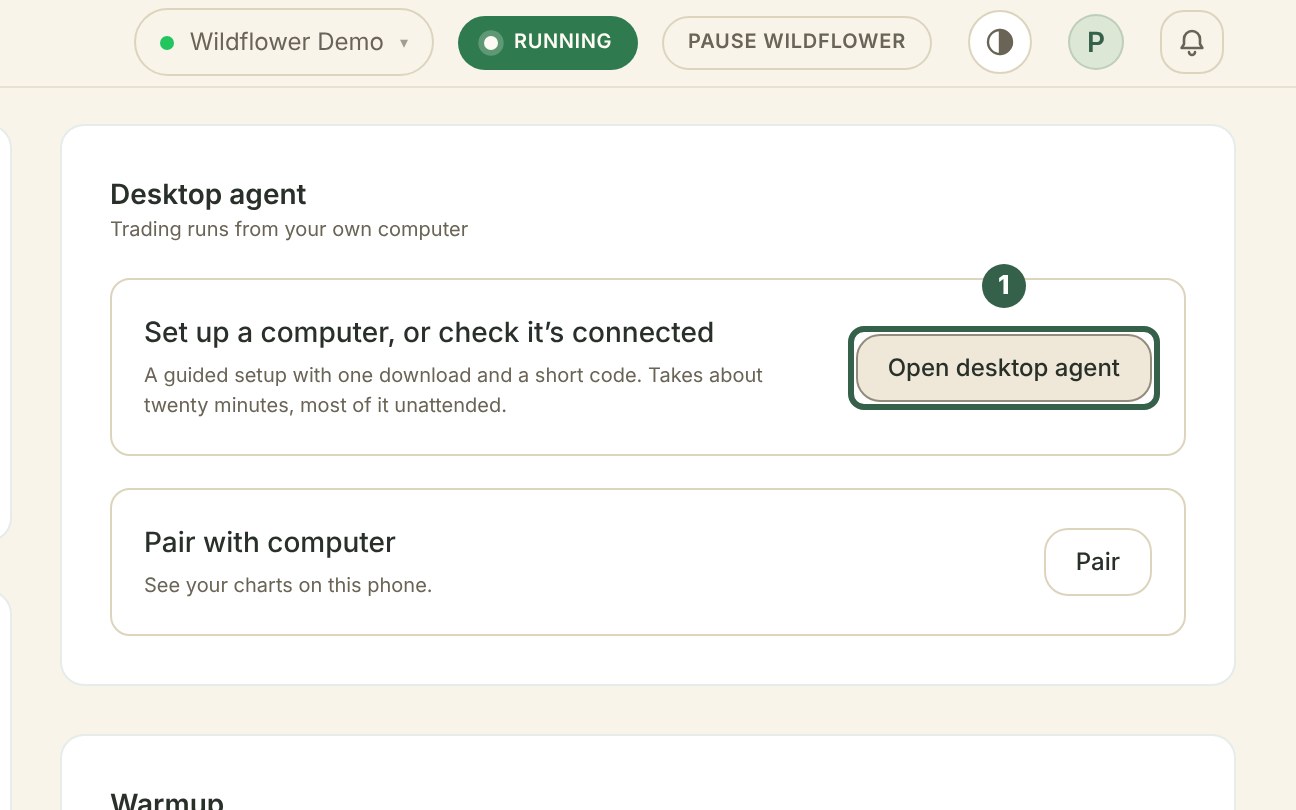
- Read What you need. Check the computer's memory, free disk and sleep setting against it.
- Choose Windows or Mac, then press Download Wildflower Setup.
- Unpack it and double-click Install Wildflower. Let it run.
- Watch Is it connected? until it says your computer is set up and running.
- Help article Set up your computer
- Help article Set up Wildflower on a Mac
Quick check
1. Your computer goes to sleep while a Wildflower trade is open on a real account. What happens to its stop and target?
2. Why does the installer refuse a second computer on the same account?
3. How do you know the setup has finished?
0 of 3 answered.
Finished this lesson?
Tick it off and keep your place
Read the full notes
Wildflower trades from your own computer, so you install the Wildflower app there once. In Wildflower you open Settings, then Desktop agent, check What you need, choose Windows or Mac, download Wildflower Setup, install it, and watch Is it connected? say your computer is set up and running.
What you'll do. This is how you set up Wildflower on your computer. By the end, the Wildflower app runs on the computer you trade from, ready for your broker. You set it up once per computer, not once per account. No broker yet? Start with Practice trading with practice money, which needs none of this.
- Your sign-in stays with you. It's kept on your computer, locked to your user account. Wildflower's servers never hold it.
- Prices come from your own broker account, through the app.
- Stop and target sit at your broker. Every trade Wildflower places on a real account has both held at your A firm that holds your trading account, passes your orders to the market and reports your trades back.More in the glossary from the moment it opens. If the computer sleeps or goes offline, an open trade keeps them. New trading stops, and Wildflower emails you.
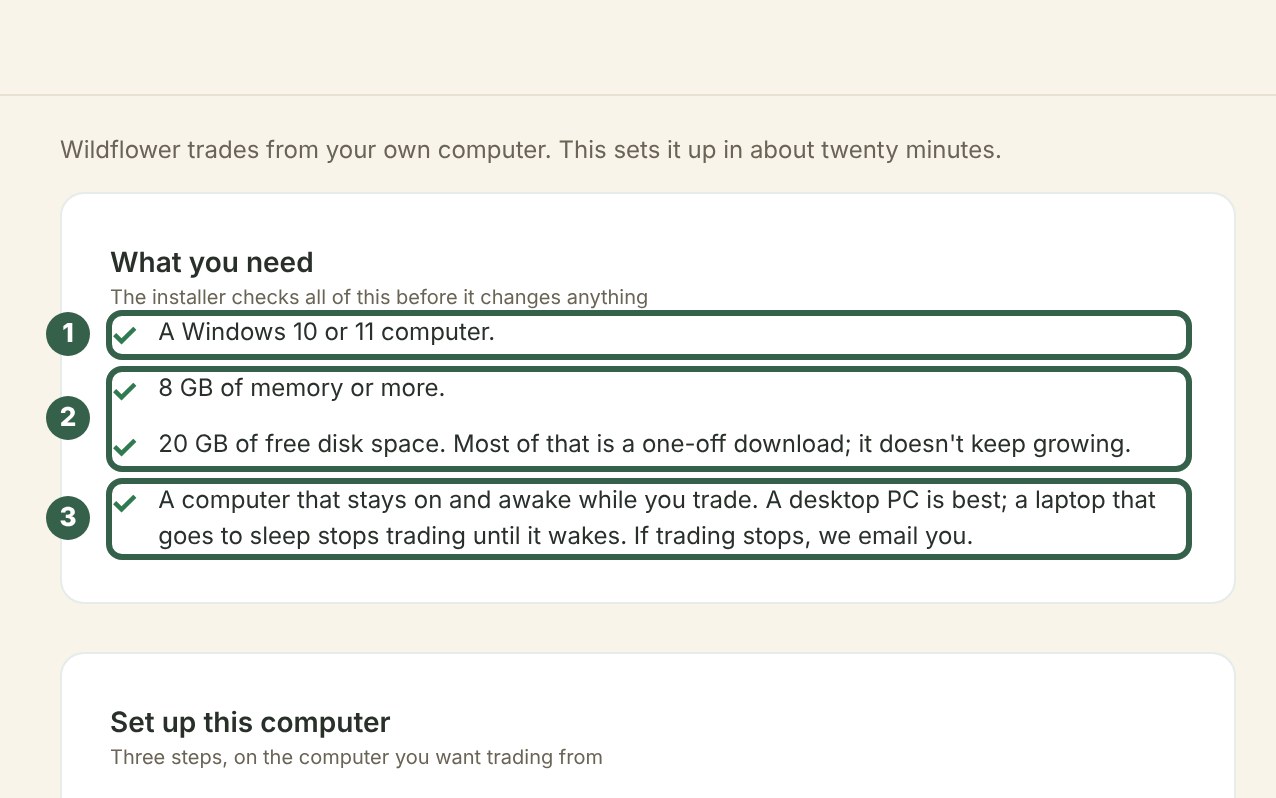
What you need. A Windows 10 or 11 computer, or a Mac on macOS 13 or newer (Apple or Intel chip). 8 GB of memory or more, and 20 GB of free disk space, mostly one download. A computer that stays on and awake while you trade. Memory and disk are in your computer's own settings, under About or Storage.
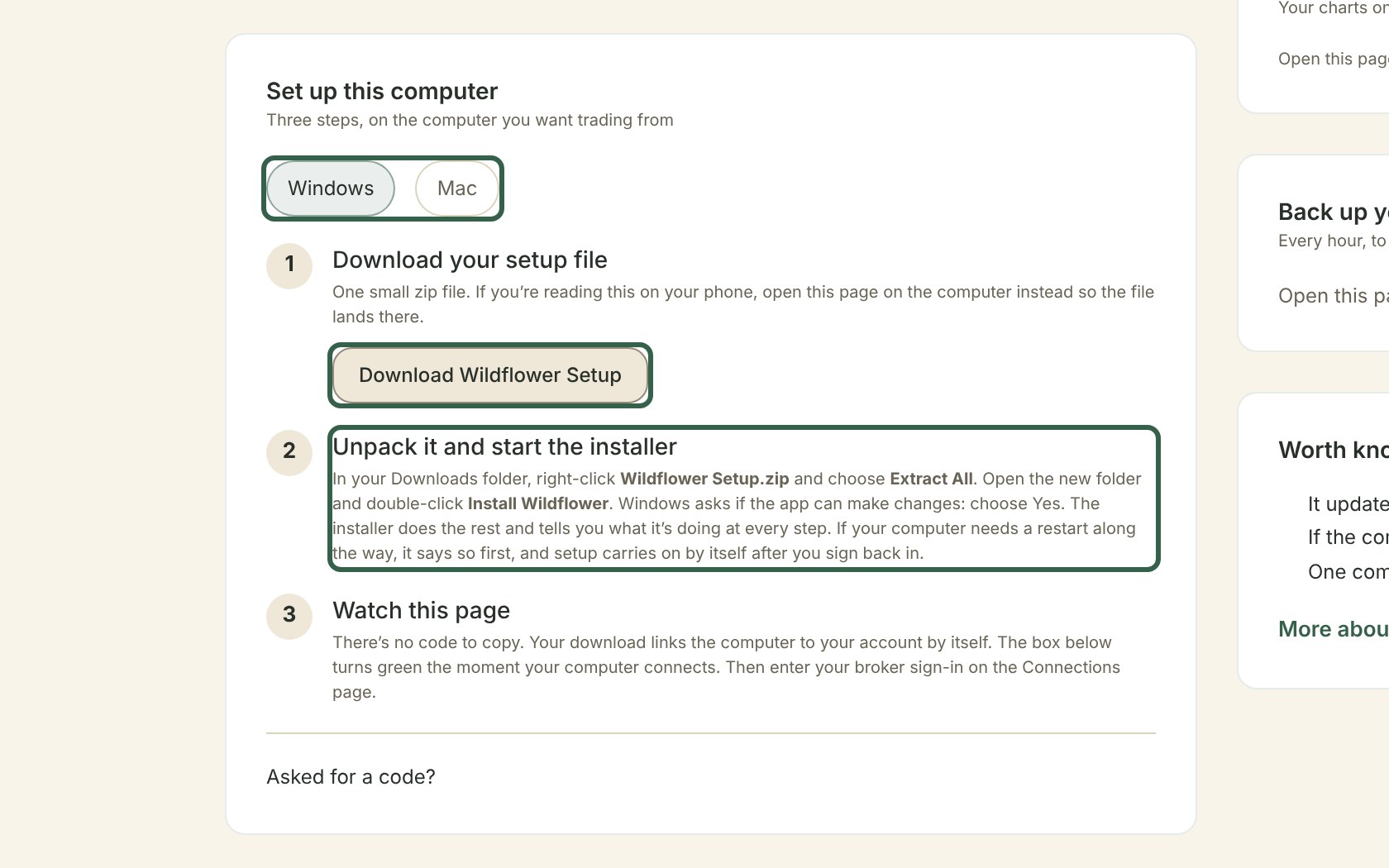
- Choose Windows or Mac. Wildflower picks the one you're on. Check it's right.
- Download. Press Download Wildflower Setup (or Download Wildflower Setup for Mac).
- Unpack and install. On Windows, right-click Wildflower Setup.zip in Downloads, choose Extract All, open the new folder and double-click Install Wildflower, then choose Yes when Windows asks. On a Mac, open Wildflower Setup for Mac in Downloads and double-click Install Wildflower. Allow ten to twenty minutes.
- Watch this page. No code to copy. Is it connected? says Your computer is set up and running.
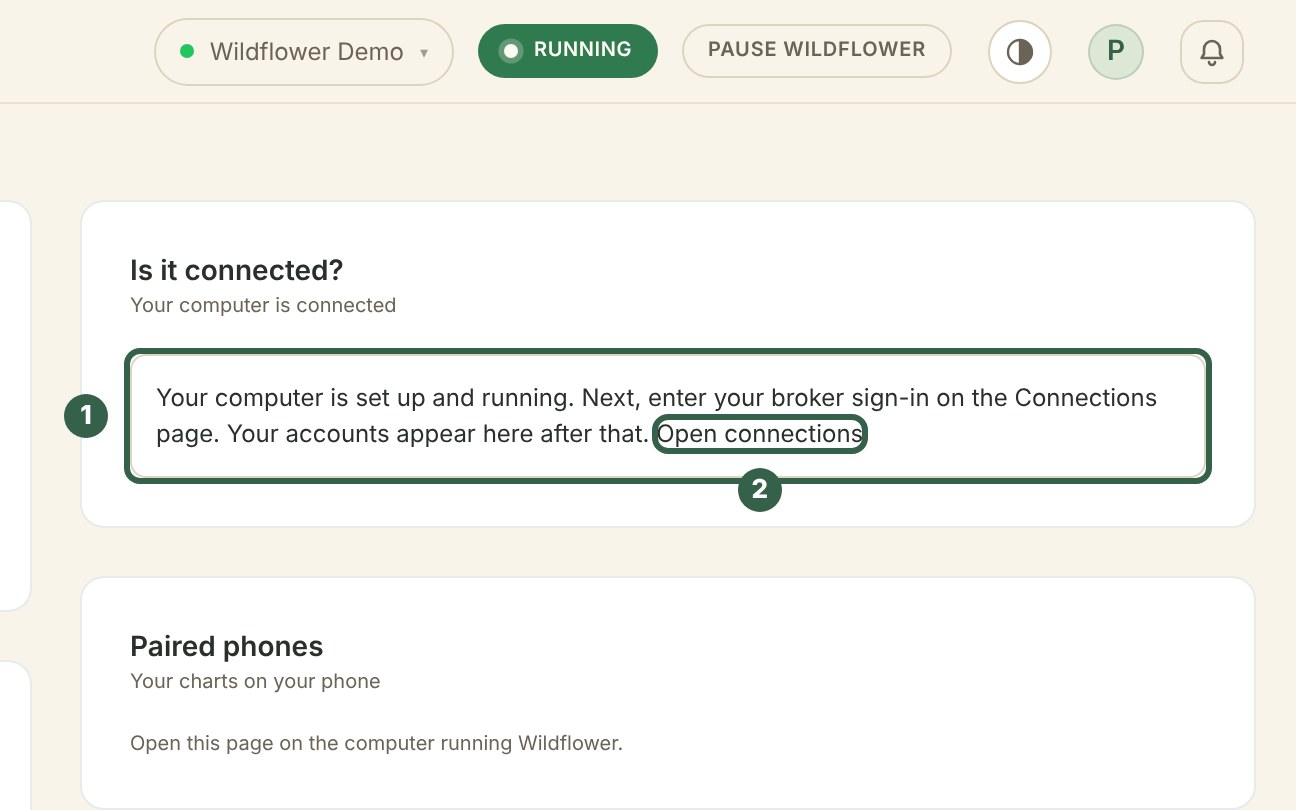
Then leave it running. New versions install between trades, never during one. It starts again by itself when the computer restarts. One computer runs each account: two would send every order twice, so the installer refuses a second. On the Desktop agent page, Back up your price data can copy your price history to a cloud folder, such as OneDrive or Dropbox, every hour. The full steps are in the help articles Set up your computer and Set up Wildflower on a Mac.
Which computer traders choose. We can't tell you which to choose. These are the common choices. A desktop that's on through their trading hours. A laptop kept plugged in, set never to sleep while charging, with the lid open. Or a spare computer used only for trading. Whichever you pick, check its sleep setting against the hours you trade.
Worked example
Made-up numbersSam's laptop falls asleep
Sam is made up. One micro gold contract, a An order that closes a trade if price reaches a level you set against it. It aims to limit the loss, but in a fast market it can fill at a worse price.More in the glossary 40 The smallest step a price can move. On many stock index futures that’s 0.25 of a point.More in the glossary away. One tick on micro gold is worth $1.
- Risk is 40 ticks × $1 = $40.
- Sam's laptop sleeps and gold drops 200 ticks.
- With the stop held at the broker, it fills, and Sam loses $40 plus any The difference between the price you expected and the price your order filled at.More in the glossary.
- With the stop only on the laptop, nothing closes the trade, and the loss reaches 200 × $1 = $200.
Same trade, five times the loss. On a real account, Wildflower holds every stop and target at your broker.
Trading is risky. You can lose money. This lesson shows how Wildflower works. It isn't advice.